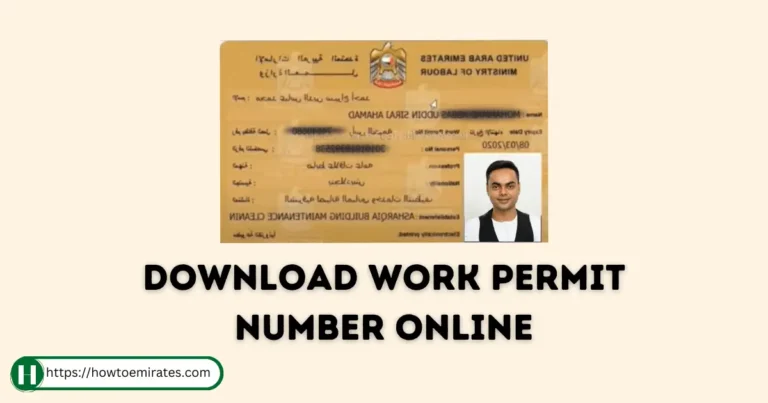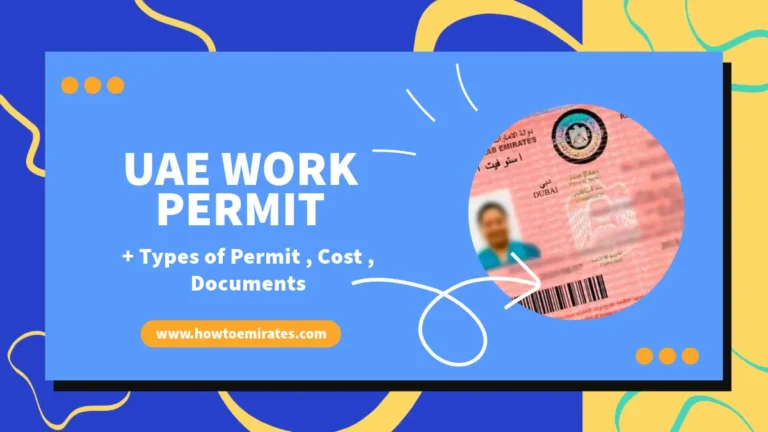
You can check your UAE work permit status for free through the Ministry of Human Resources and Emiratisation (MOHRE) — also referred to by its older name, the Ministry of Labour (MOL), so you may see this called an “MOL approval status” or “MOL enquiry” check. You can do this on MOHRE’s online inquiry portal or through the MOHRE Smart App. The check takes a couple of minutes and needs no office visit.
This guide applies to UAE mainland employment. MOHRE governs work permits for private-sector mainland companies. If you work for a company registered in a free zone (JAFZA, DMCC, DAFZA, etc.), your work permit is generally processed by that free zone’s own authority, not MOHRE — check with your employer or free zone authority instead. Financial free zones (DIFC, ADGM) run entirely separate employment systems and are fully outside MOHRE’s scope.
This guide covers both the pre-arrival “pre-approval” check and the status check for a permit that has already been issued, since MOHRE treats these as two different services and mixing them up is the most common reason people can’t find their result.
What Is a UAE Work Permit? (Quick Refresher)
A work permit is the document MOHRE issues authorising a mainland employer to hire a specific foreign national. It’s a legal requirement — working in the UAE private sector without one can result in fines for both the employee and the employer. The permit process happens in two stages:
- Pre-approval (initial approval) — MOHRE clears the employer to bring the worker into the UAE, before the worker arrives or before their status changes. This is a provisional step, not a final work permit.
- Final work permit (Labour Card) — issued after the worker enters the UAE, completes a medical fitness test, and applies for an Emirates ID. This is the permit that lets someone actually work.
What You’ll Need Before You Start
Have one of the following ready, depending on which service you use:
- Transaction number (given by your employer or typing/Tasheel centre when the application was submitted)
- Work permit / labour card number, if one has already been issued
- Person code and date of birth
- Alternatively, your Emirates ID number for some services in the MOHRE Smart App
No MOHRE account or UAE Pass is required for the basic web enquiries below — you only need one for the Smart App.
Where to Find Your Work Permit / Transaction Number
If you don’t already have your number to hand, check these places first:
- Your offer letter or employment contract — the transaction number is usually printed near the top.
- Emails or messages from your employer’s PRO or HR team — they receive the transaction number directly from MOHRE when the application is submitted and typically forward it to you.
- A Tasheel/typing centre receipt, if the application was processed through one.
- If none of these are available, ask your employer’s PRO directly — they submitted the application and can look it up on their end, or call MOHRE on 600 590 000 with your Emirates ID/passport details ready.
Check Work Permit Status via the MOHRE Inquiry Portal
- Go directly to the official MOHRE enquiry portal: inquiry.mohre.gov.ae. This is MOHRE’s primary public enquiry portal and covers every service below.
- From the “Choose a service” dropdown, pick the option that matches your situation:
- “Electronic Work Permit Information” — use this if a work permit has already been applied for and you want its current status.
- “Pre Approval For Work Permit Information Status for MOI” — use this only if you’re checking the earlier pre-approval/initial-approval stage (before the worker has entered the UAE).
- “Application Status” — a more general transaction-status lookup if you’re not sure which specific permit type applies.
- Enter the required details — typically your Transaction Number, Person Code, and Date of Birth (fields vary slightly by service).
- Complete the on-screen security code.
- Click Search. Your current status will display on screen, and for issued permits you can select “Print Electronic Work Permit” to download a PDF copy.
Check Work Permit Status via the MOHRE Smart App
The MOHRE Smart App mirrors the inquiry portal and is the faster option on mobile.
- Download the official app — Android (Google Play) or iOS (App Store).
- Open the app and sign in. You have two options:
- UAE Pass — the UAE’s national digital identity app, now the recommended login method for MOHRE services (tap “Login with UAE Pass” and approve the request in the UAE Pass app).
- Emirates ID / registered MOHRE account credentials, if you haven’t set up UAE Pass yet.
- Go to Services → Inquiry Services.
- Choose the enquiry type that matches your case (same “Electronic Work Permit Information” vs “Pre-Approval” distinction applies here).
- Enter your Transaction/Permit Number and other requested details, then tap Search.
- Your work permit or labour card status will display, with the option to download or view your digital labour card.
What Happens After Your Work Permit Is Approved?
An approved e-work permit isn’t the final step — a few things typically follow:
- If the worker is outside the UAE: an entry permit is issued so they can travel to the UAE.
- On arrival: the worker completes a medical fitness test at a MOHRE-approved health centre.
- Emirates ID application: the worker applies for their Emirates ID, which is required before the final labour card is issued.
- Final labour card issuance: once the medical test and Emirates ID application are complete, MOHRE issues the final, active labour card — this is what you’ll see when you check “Electronic Work Permit Information” going forward.
If it’s been longer than a few working days since approval and none of these next steps have happened, check in with your employer’s PRO, since they typically manage each stage.
Other Ways to Check Your Status
If you don’t have online access, MOHRE offers several alternative channels:
- Call centre / WhatsApp: 600 590 000 — available 24/7, and the most direct line for a work permit status question.
- Toll-free line: 80060 — MOHRE’s general multilingual (14-language) toll-free number, more commonly used for complaints and domestic-worker services. For a straightforward work permit status check, 600 590 000 is the faster route.
- Email: [email protected]
- Tasheel service centres: authorised typing centres across the seven emirates can run the same enquiry for you, usually for a small service fee
All of MOHRE’s own online and app-based enquiry services are free. Third-party sites that charge a fee to “check your MOHRE status” are not official MOHRE channels.
Understanding Your Work Permit Status Results
Typical results you’ll see include:
- Approved / Active — the permit is valid and in effect.
- Under Process / Pending — MOHRE is still reviewing the application; no action needed yet unless it’s been unusually long.
- Rejected — the application didn’t meet requirements. Contact your employer’s PRO or MOHRE to find out why and what’s missing.
- Cancelled / Expired — the permit is no longer valid. You should not work under it; contact your employer or MOHRE immediately.
If a status looks wrong or hasn’t updated in longer than expected, contact your employer’s PRO first (they submitted the application), then MOHRE’s call centre on 600 590 000 if the issue isn’t resolved.
Work Permit vs Labour Card vs Establishment Card — What’s the Difference?
- Work permit is the authorisation MOHRE issues for a specific job, covering both the pre-approval and final stages described above.
- Labour card is effectively the final, active work permit in card form — it’s what proves an employee is legally working for a specific employer. Physical cards are no longer issued; it’s a digital record (the Electronic Work Permit) you can view and print via the portal or app.
- Establishment card belongs to the employer, not the employee. It’s the company’s own registration with MOHRE (separate from the GDRFA/ICP immigration establishment card) and is what allows the company to apply for work permits in the first place.
Frequently Asked Questions
Is checking my UAE work permit status free?
Yes. Checking your status through the MOHRE inquiry portal, the MOHRE Smart App, the call centre, or WhatsApp is free. You only pay a fee if you ask a Tasheel or typing centre to do it on your behalf.
Does this apply to free zone employees too?
Not directly. This guide covers mainland work permits issued by MOHRE. If you work for a free zone company, check your status through that free zone’s own authority instead.
Do I need to log in or create an account to check my status?
No. The basic web enquiries at inquiry.mohre.gov.ae don’t require a login. The MOHRE Smart App does require signing in, and UAE Pass is the recommended method.
What information do I need if I don’t have my work permit number?
You can generally search using your Transaction Number and Person Code instead — see “Where to Find Your Work Permit / Transaction Number” above. If you have neither, contact your employer or MOHRE directly with your Emirates ID or passport details.
What does “Pre-Approval” status mean, and is it the same as a work permit?
No. Pre-approval (initial approval) only clears an employer to bring you into the UAE — it’s not a final work permit. The final work permit/labour card is issued after you arrive, pass the medical fitness test, and apply for your Emirates ID.
What should I do if my status shows “Rejected” or “Cancelled”?
Contact your employer’s PRO first, since they manage the application. If you can’t get an answer, call MOHRE’s main line on 600 590 000.
Can employers check multiple employees’ work permits at once?
Yes in effect — the MOHRE Smart App and inquiry portal let employers look up individual employee records one at a time using each person’s transaction or permit details; there isn’t a public bulk-lookup tool on the inquiry portal itself.
Before You Go . . .
Hope this guide helped you check your UAE work permit status, whether online or via the MOHRE app. A valid work permit is required for anyone working for a UAE mainland employer, and part of staying compliant is checking in on it periodically. You might also find these guides useful: